

Changing your password after a scare feels like closing the door. It doesn't always close every window an attacker opened while they were inside.
Forwarding rules, mailbox filters, delegated access, and signed-in sessions can all outlast a password reset, quietly handing over your mail, or your access, long after you think the account is secure. The good news: each one takes under a minute to check.
A password reset stops someone from logging back in. It doesn't remove what they already set up while they were in. That has to be found and cleared separately.
Gmail: four checks to run
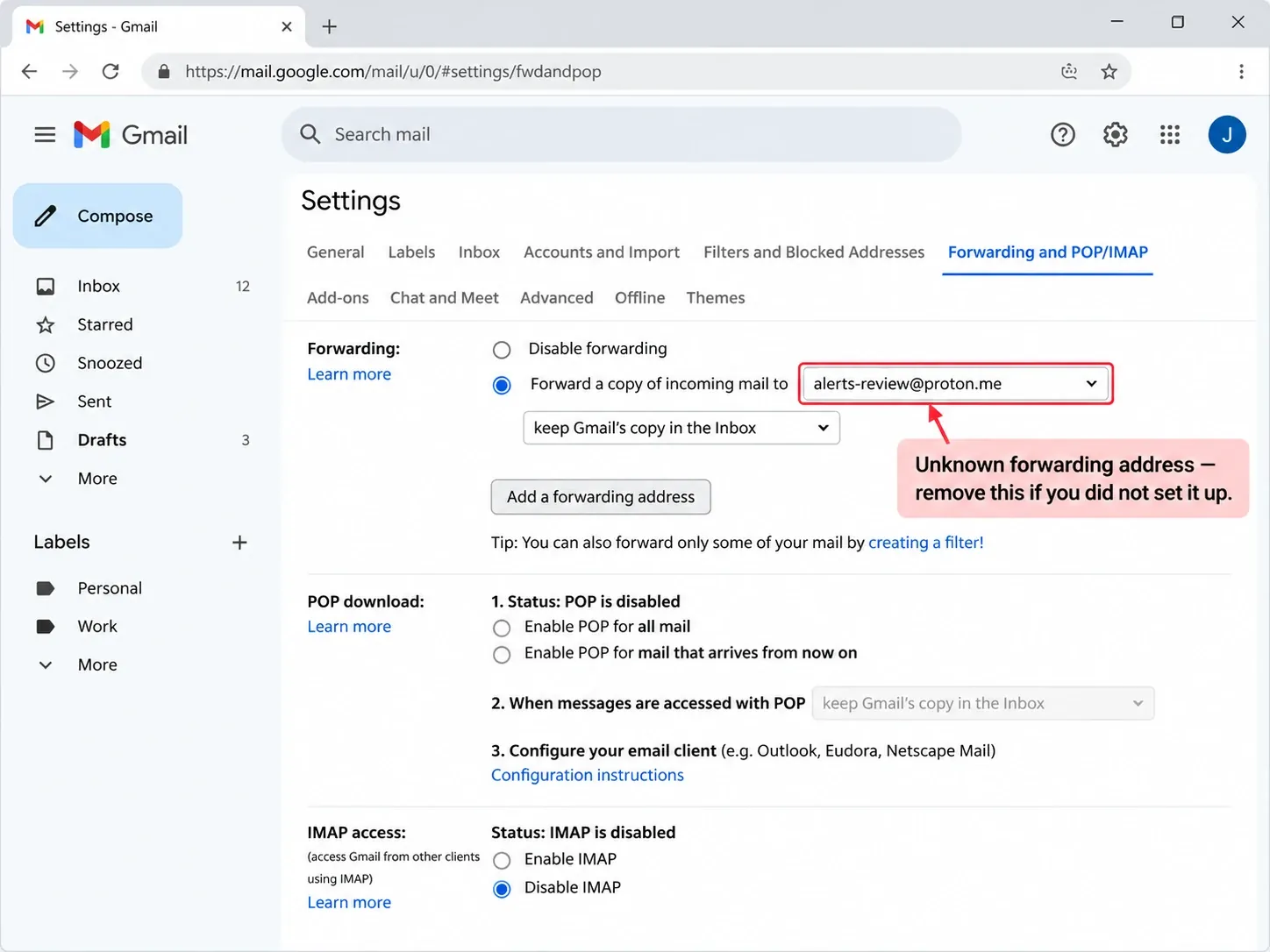
1. Check automatic forwarding
Settings → See all settings → Forwarding and POP/IMAP. Confirm forwarding is off, or that every forwarding address on the list is one you recognize. Remove anything you didn't set up yourself.
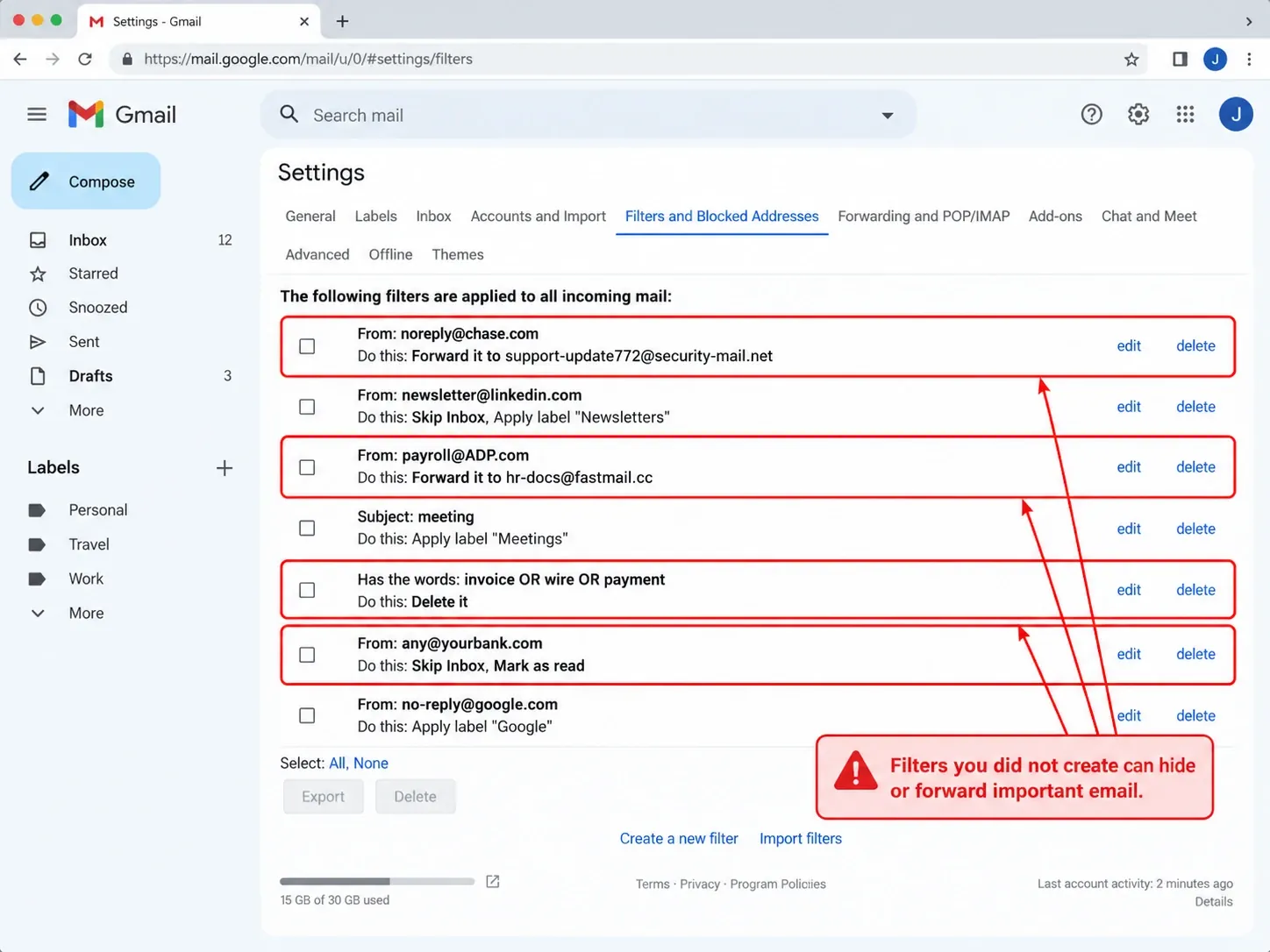
2. Review filters
Settings → Filters and Blocked Addresses. Delete any filter you didn't create, especially one that forwards, deletes, archives, skips the inbox, or marks messages as read. These are how an attacker keeps your replies from ever reaching you.
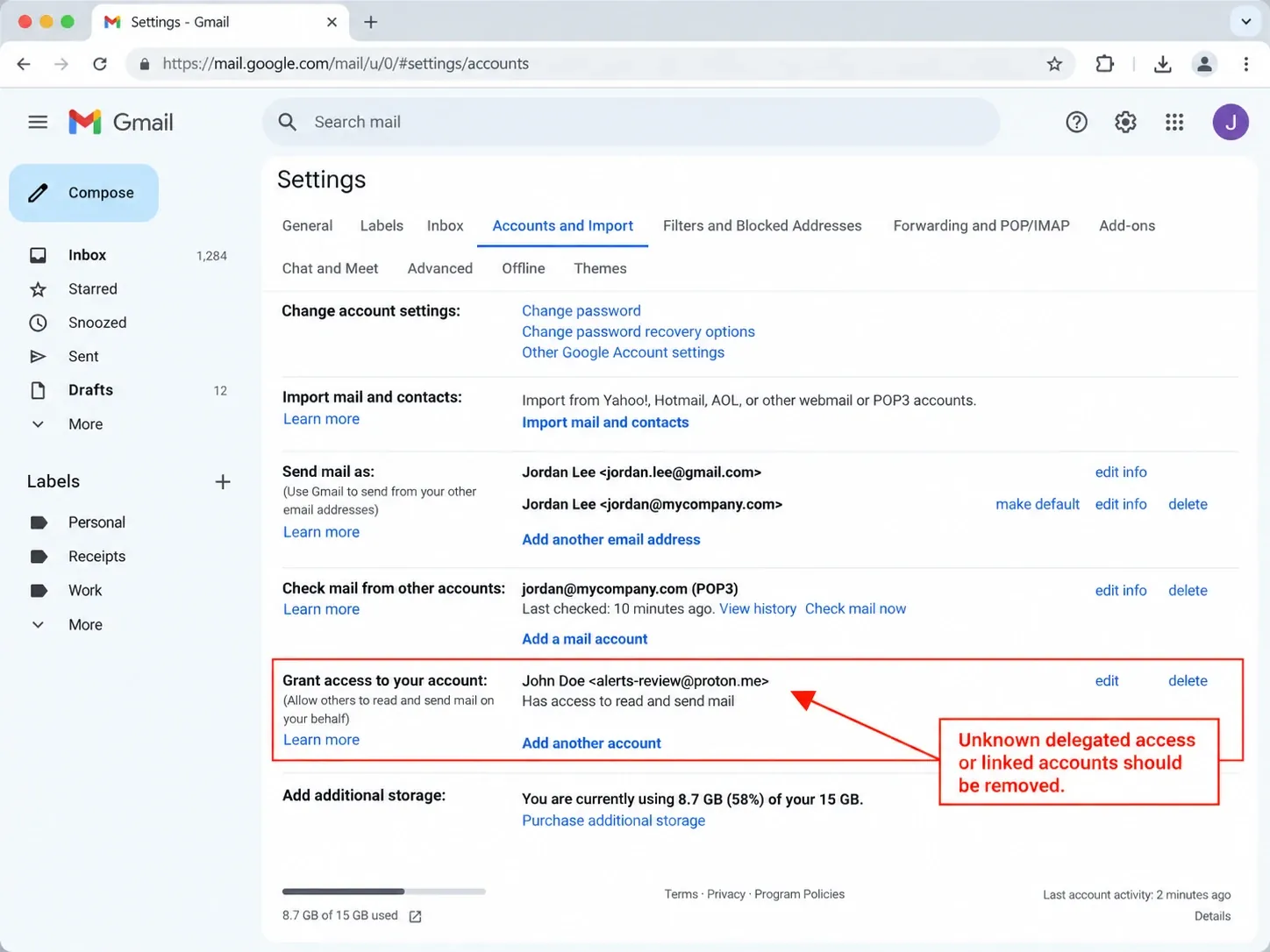
3. Check delegated access
Settings → Accounts and Import. Under account access and linked-mail settings, remove anyone unfamiliar who can read or send mail as you.
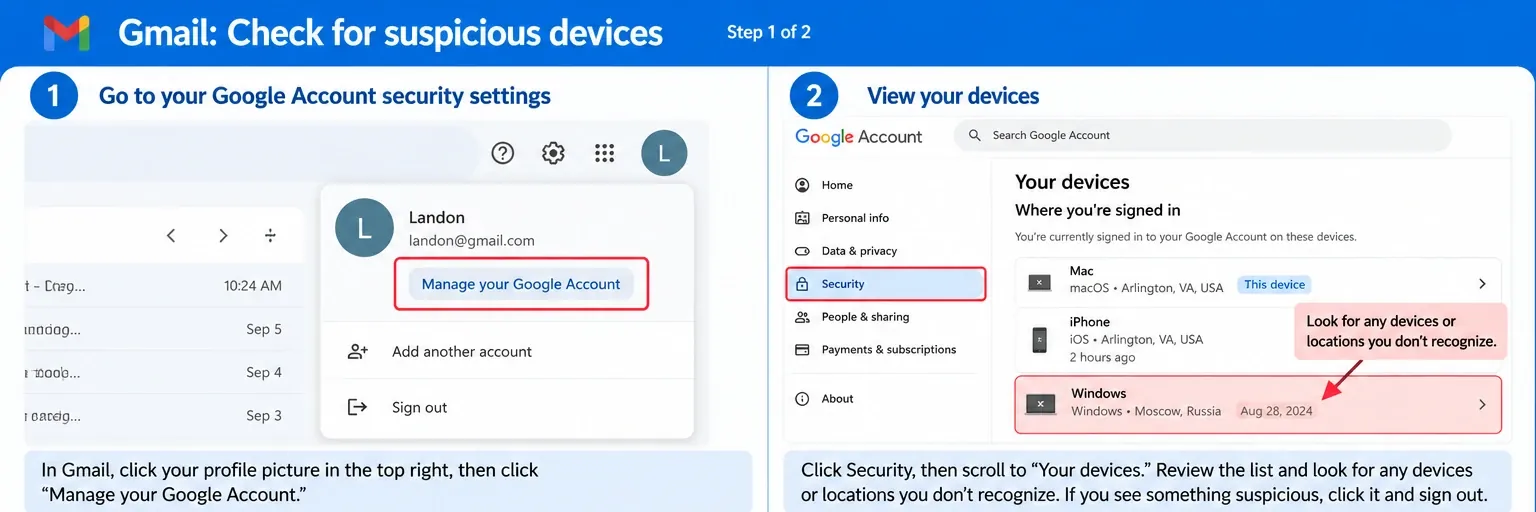
4. Review signed-in devices
Google Account → Security → Your devices. Look for a device, location, or piece of recent activity you don't recognize. Select it and sign it out.
Outlook / Microsoft 365: three checks to run
1. Check automatic forwarding
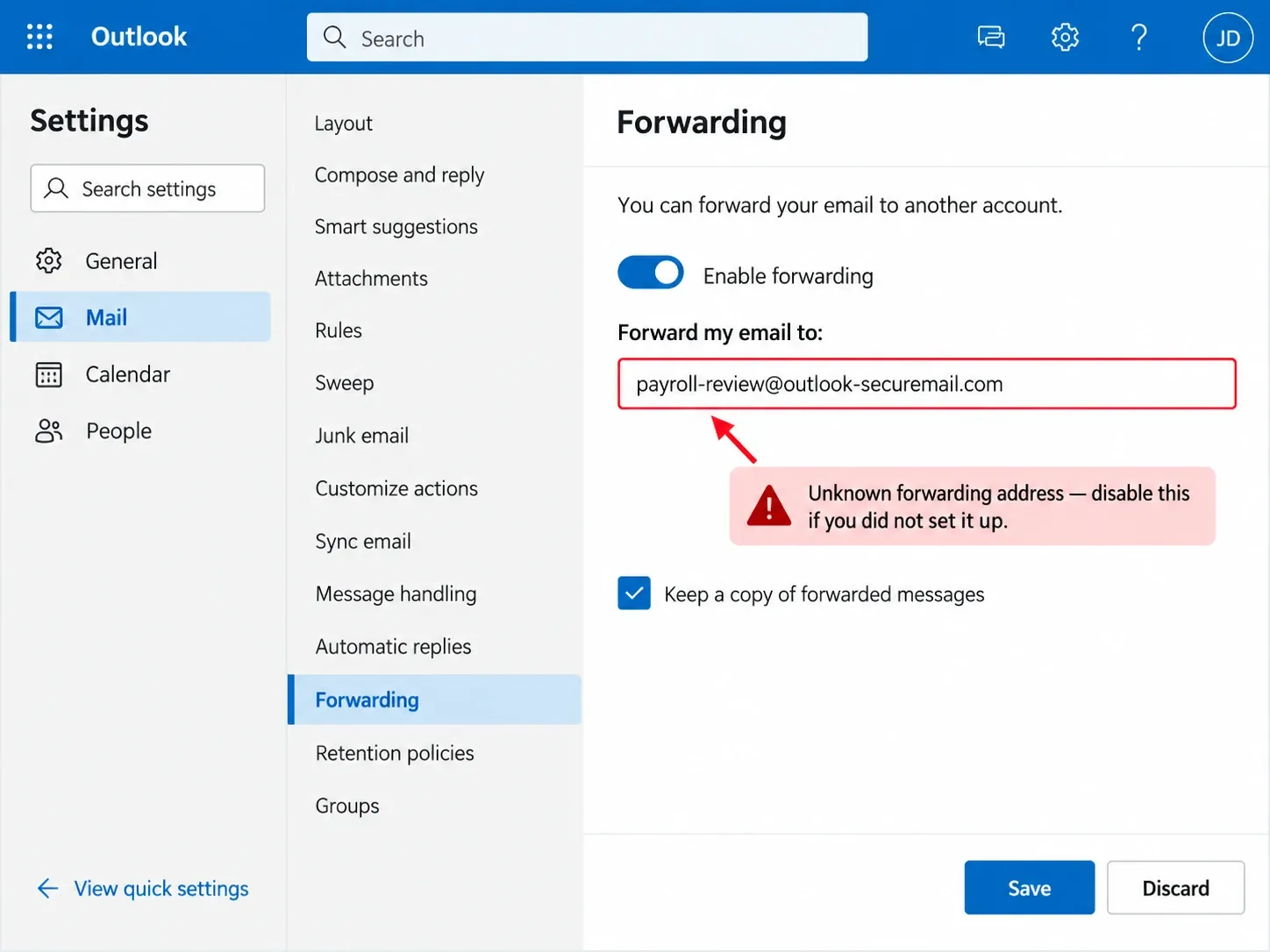
Outlook → Settings → Mail → Forwarding. Make sure forwarding is off unless you set it up yourself, and disable any unfamiliar external address.
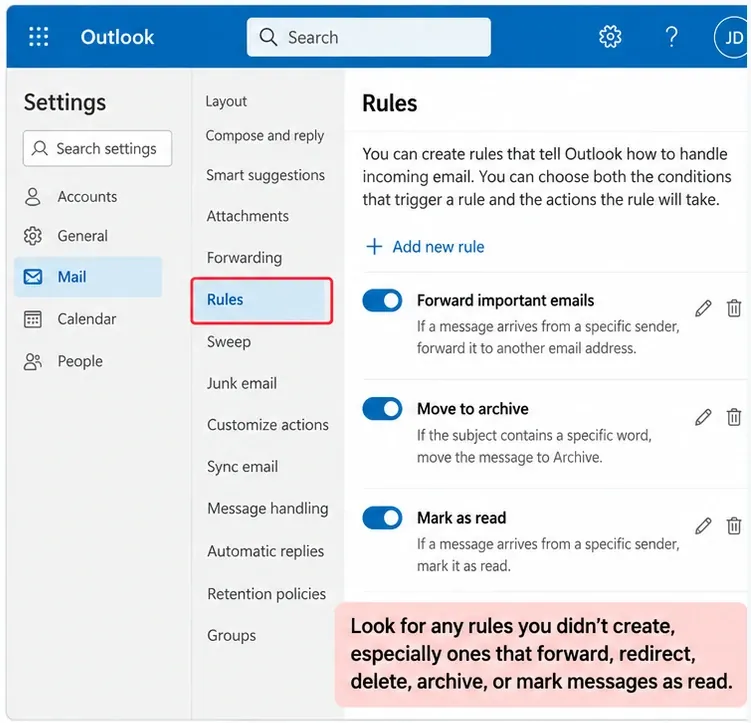
2. Review inbox rules
Outlook → Settings → Mail → Rules. Remove any rule you don't recognize, especially one that forwards, redirects, deletes, archives, or marks messages as read.
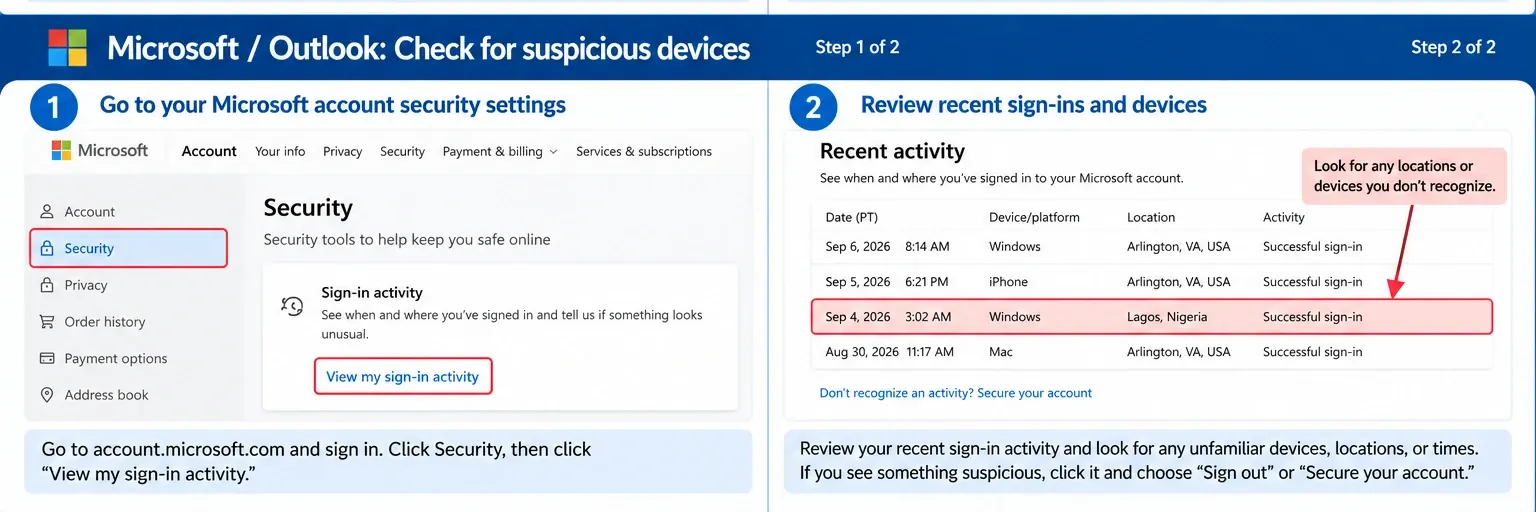
3. Review recent sign-ins
Microsoft account → Security → Sign-in activity. Look for an unfamiliar device, location, time, or a successful sign-in you don't remember. Secure the account and sign out anything suspicious.
Menu labels shift slightly depending on account type and product updates, but these settings exist in some form on every Gmail and Microsoft 365 account, and the steps above will get you there.
Found something?
If any of these checks turns up something you didn't set up, work through this list in order:
- Remove it. Delete the forwarding address, rule, filter, delegated access, or suspicious session.
- Change your password. Use a new, unique password you haven't reused anywhere else.
- Sign out other sessions. Revoke every unknown or unnecessary session and device.
- Turn on MFA. An authenticator app is a stronger choice than SMS when it's available.
- Verify your recovery settings. Confirm your recovery email, phone number, and security questions are still yours.
Summary
- A password reset doesn't undo everything. Forwarding, filters, delegated access, and active sessions all survive it.
- Check forwarding and filters first. It's the fastest way an attacker keeps reading your mail after losing your password.
- Review who has delegated access and which devices are signed in, not just how you log in.
- If you find anything unfamiliar: remove it, change your password, sign out other sessions, and turn on MFA.
Protect the inbox before a scam becomes an incident. Run a suspicious email, text, link, or call through a free Quick Check with Carmen, or get help if you think an account is already compromised.