Get started with Carmen at work.
Your admin has invited you. About five minutes.
01
Accept the invite
Open the email and click Accept. Create your password. You are now on your company's Backgrounder account.
Setup reference
Backgrounder invitation
Get started with Carmen at work
Accept invite02
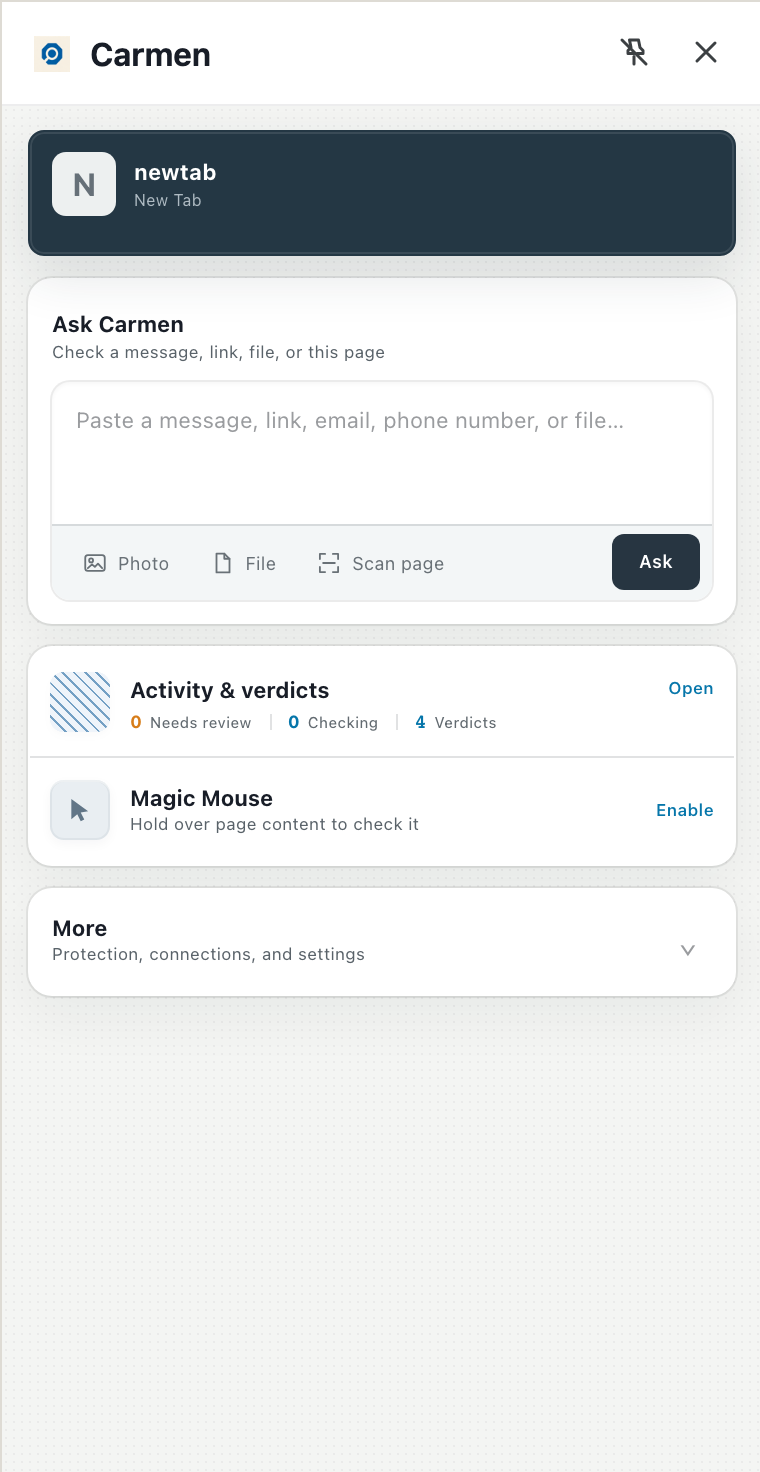
Add the Carmen extension
Same steps as the extension guide. Sign in with the account you just made.
Carmen
03
Connect your work mailbox
There are two ways this happens. If your admin has already connected the company's mail, your mailbox is protected and there is nothing for you to do here. If not, open Settings, then Integrations, and click Connect next to Gmail or Microsoft 365, then sign in. If your admin has approved Carmen for the company you will not see a permissions screen; if you do, click Allow.
See the Gmail or Microsoft 365 guide.
Ask Carmen
 GmailConnect
Microsoft 365Approved by your companyConnect
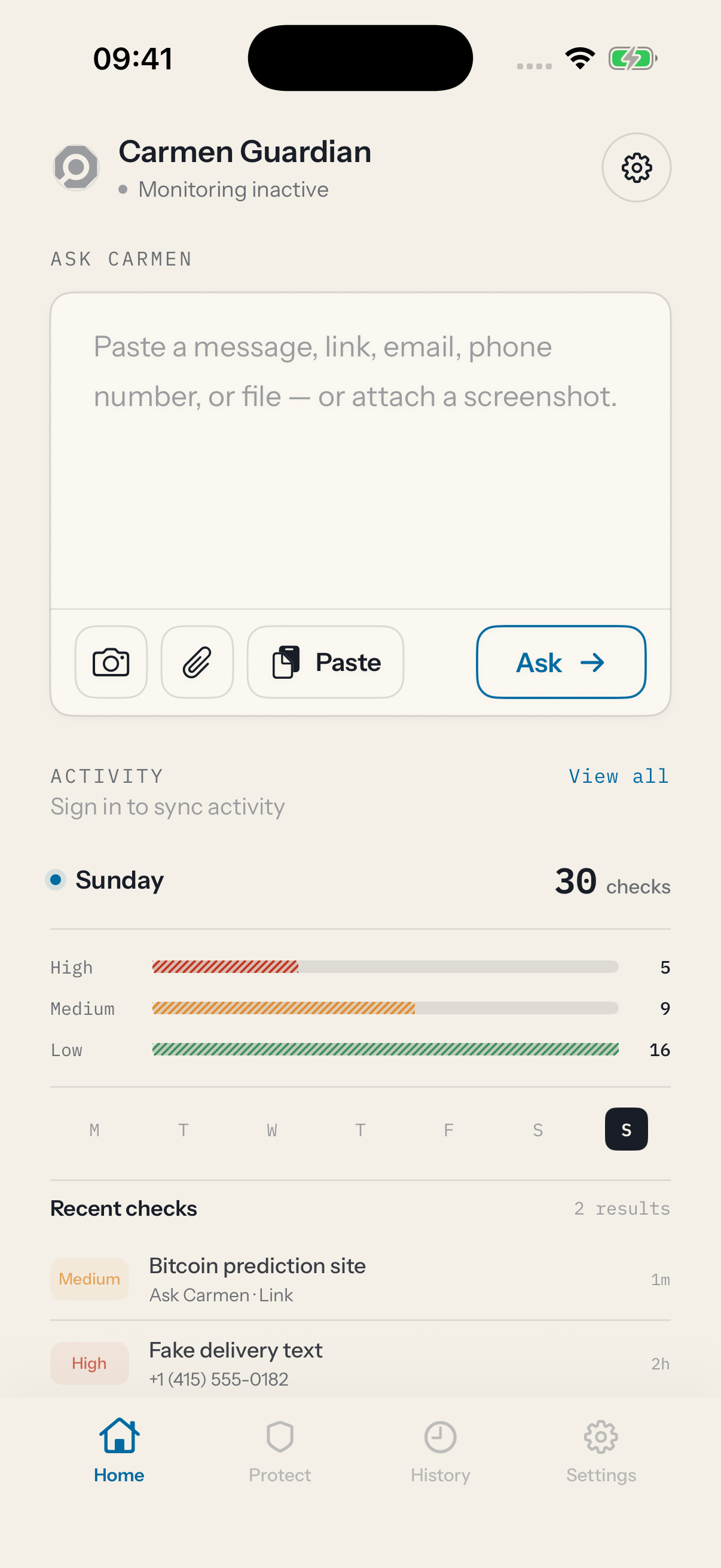
Carmen app
The Carmen app is coming soon


05
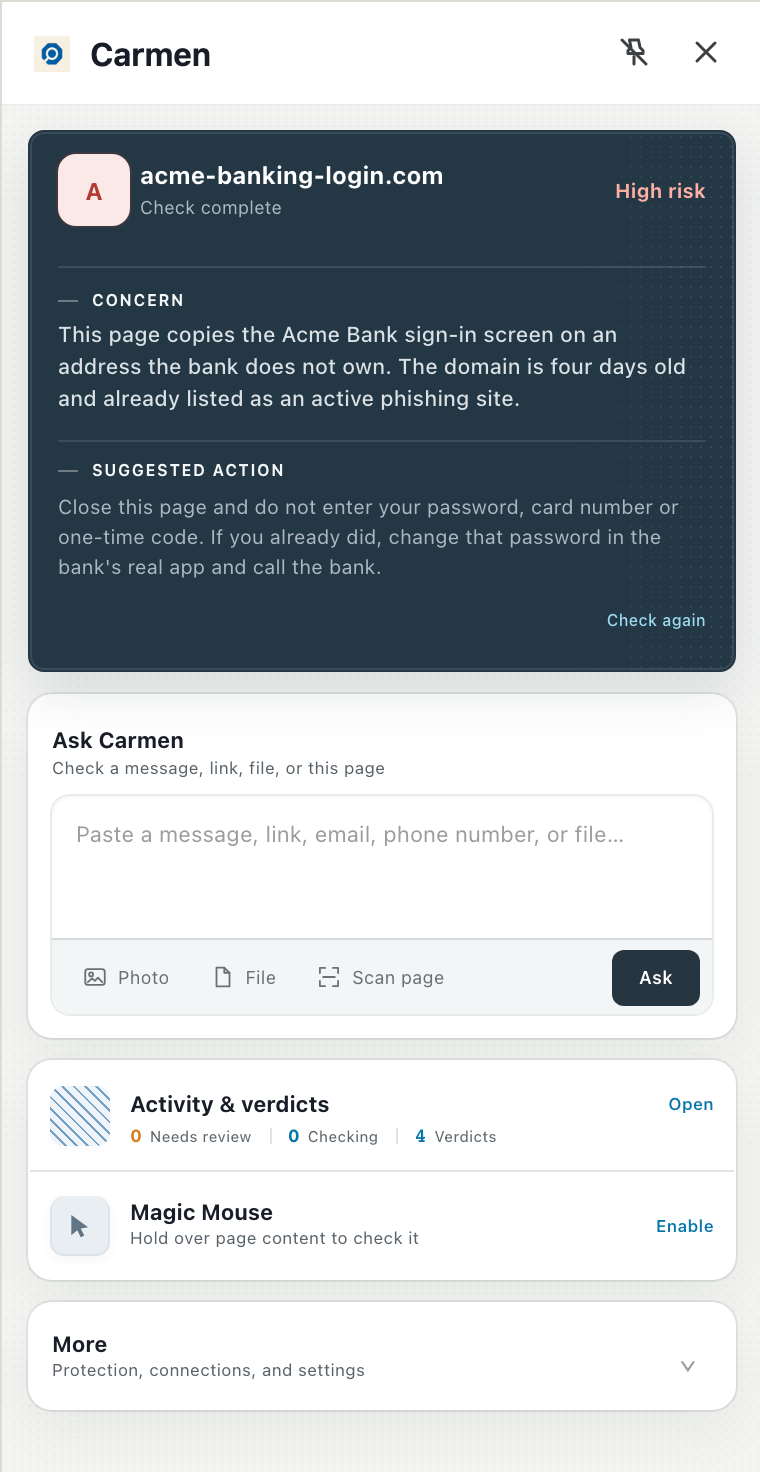
Run your first check
Paste a message into Ask Carmen. From now on Carmen screens on its own.
Carmen
If it did not work
- invite missing (check spam, ask your admin to resend from People)
- Carmen missing from Chrome (click the puzzle icon and pin it)
- mailbox will not connect (your admin has not approved it yet).