Set up the Carmen extension.
About two minutes.
Add it from the Chrome Web Store
Click here to open the Carmen extension in the Chrome Web Store, then click Add to Chrome and Add extension. Brave installs from the same page. On Firefox or Microsoft Edge, get it from Firefox Add-ons or Edge Add-ons instead.

Carmen extension
Add to ChromePin it
Click the puzzle icon in the toolbar, then the pin next to Carmen. The icon stays in your toolbar. Carmen asks you to do this the first time it opens.
Keep Carmen close. Select the pin icon in Chrome to keep Carmen in your toolbar. When it is pinned, select Done.
Extensions
CarmenSign in
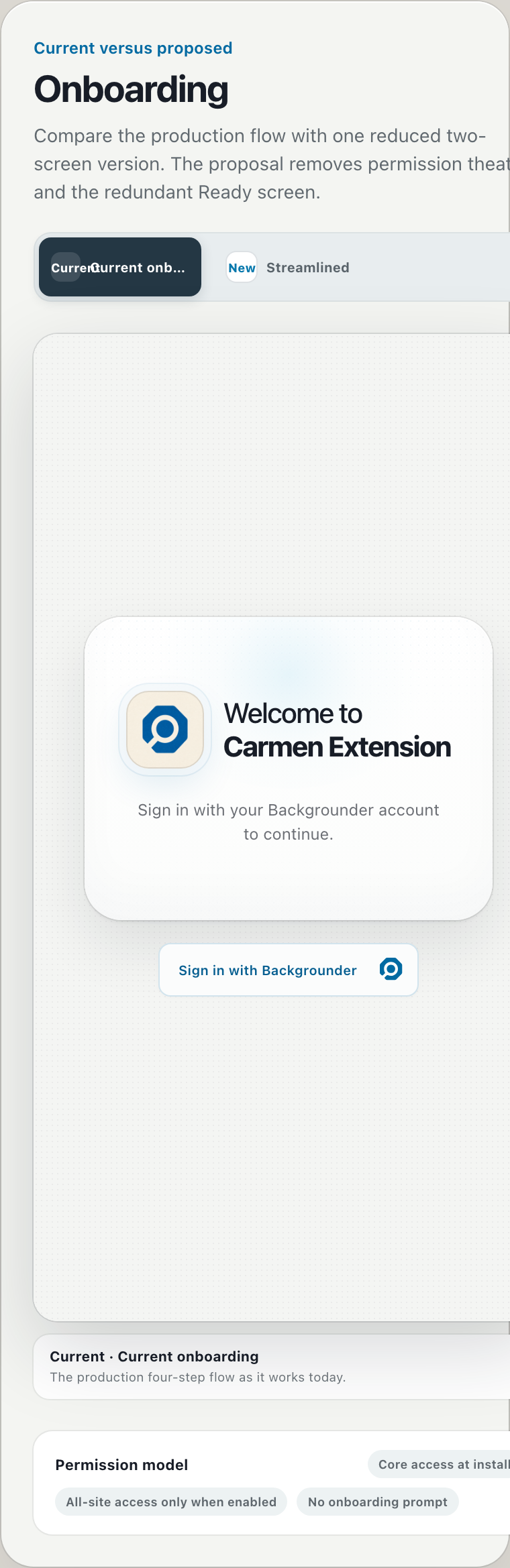
Click the Carmen icon. The panel opens on the right. Click Sign in with Backgrounder. A tab opens on backgrounder.com, you sign in, and it returns you to the panel.
Welcome to Carmen Extension. Sign in with your Backgrounder account to continue.
Choose what Carmen watches
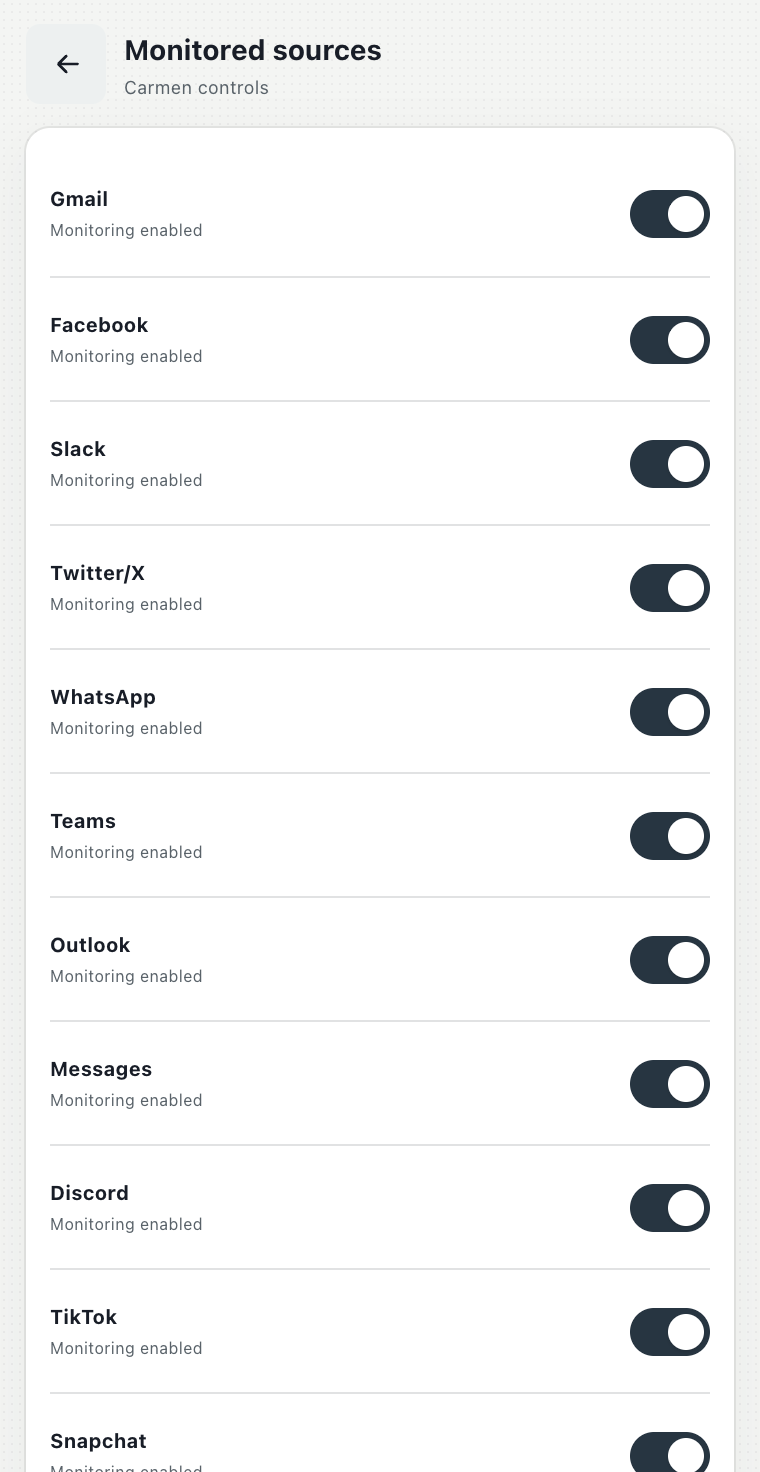
Tick the services you want screened. Nothing is ticked for you and Carmen watches nothing until you tick something. Most people start with their email. You can change this later under More, Connections, Monitored sources.
Choose what Carmen watches. Select the services where Carmen may screen messages for suspicious content.
Choose what can be shared
There are three levels. Maximum privacy sends only who a message is from and when. Recommended sends the content after emails, phone numbers, names and addresses are removed. Full access sends everything. Recommended is preselected. Then click Start monitoring.
Choose what can be shared
Run your first check
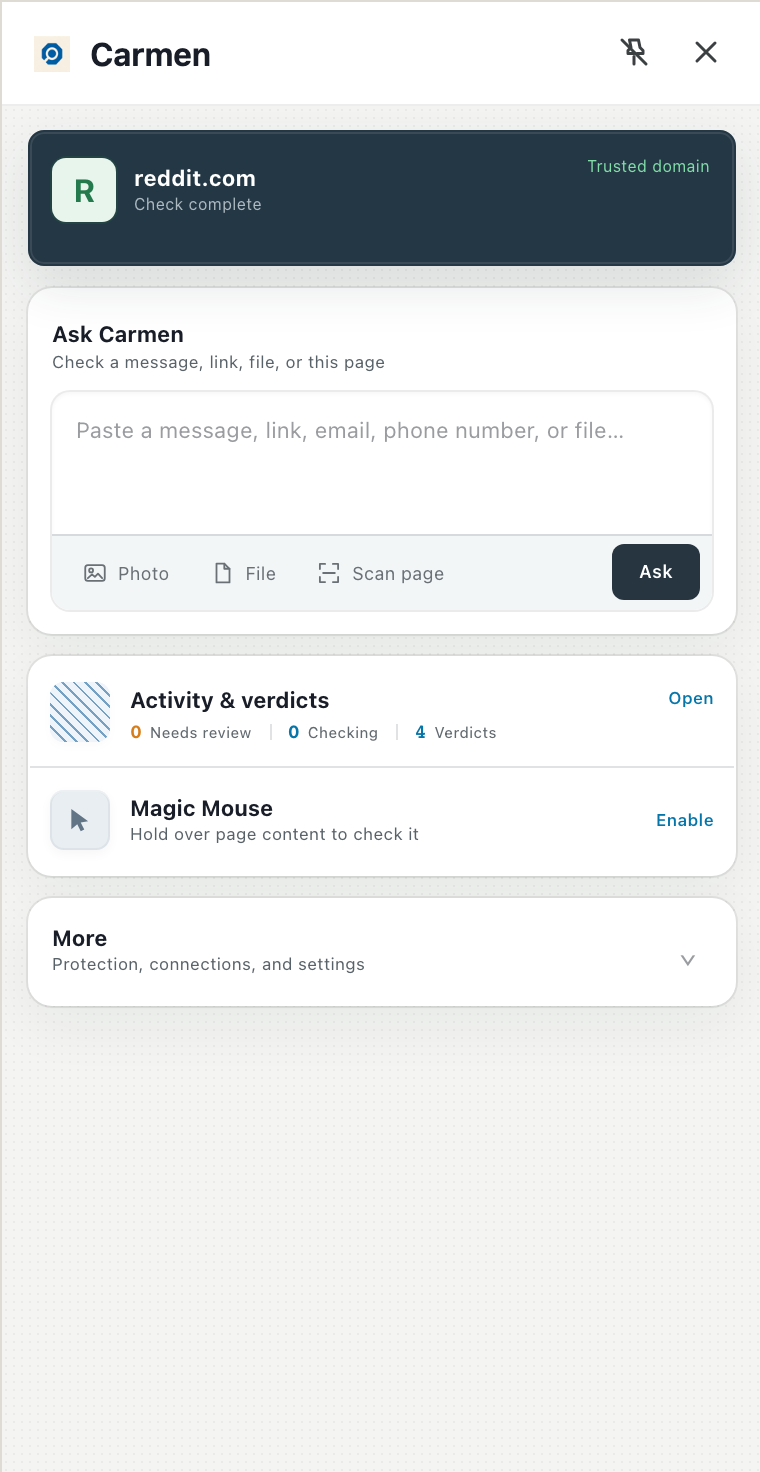
Open any well known site. The top card says Trusted domain. Now paste a message you were not sure about into Ask Carmen and click Ask. The result appears in the panel and in Activity.
If it did not work
- Not in the toolbar: click the puzzle icon and pin it.
- The panel will not open: restart Chrome and click the icon again.
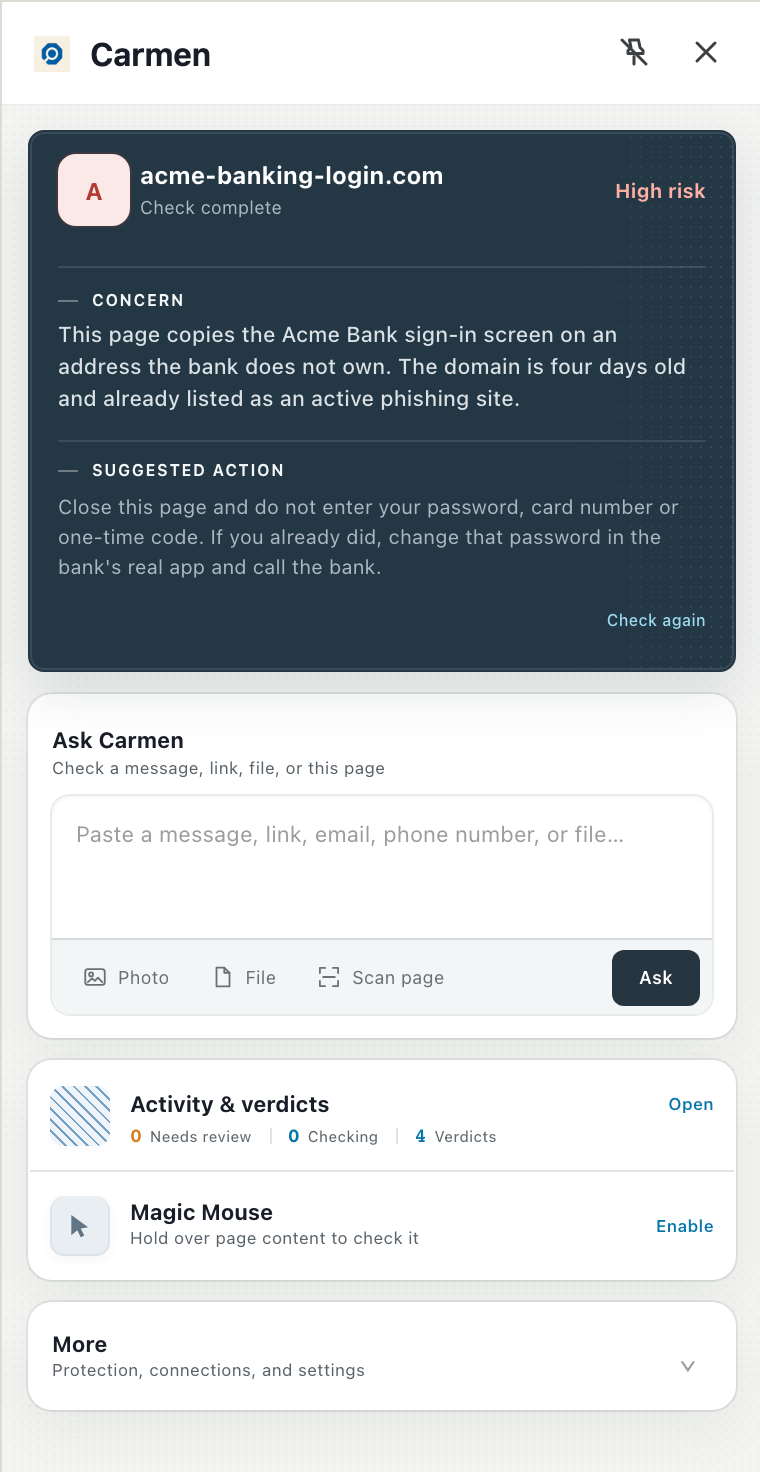
- Top card says Connection needed or Carmen is offline: click Check again. If it stays, open More, Connections, and sign in again.
- A site is not being watched: open More, Connections, Monitored sources and check the switch. Pages already open keep the old setting until you reload them.