Connect your Microsoft 365 mailbox.
Nothing to install. About a minute, once your admin has approved it.
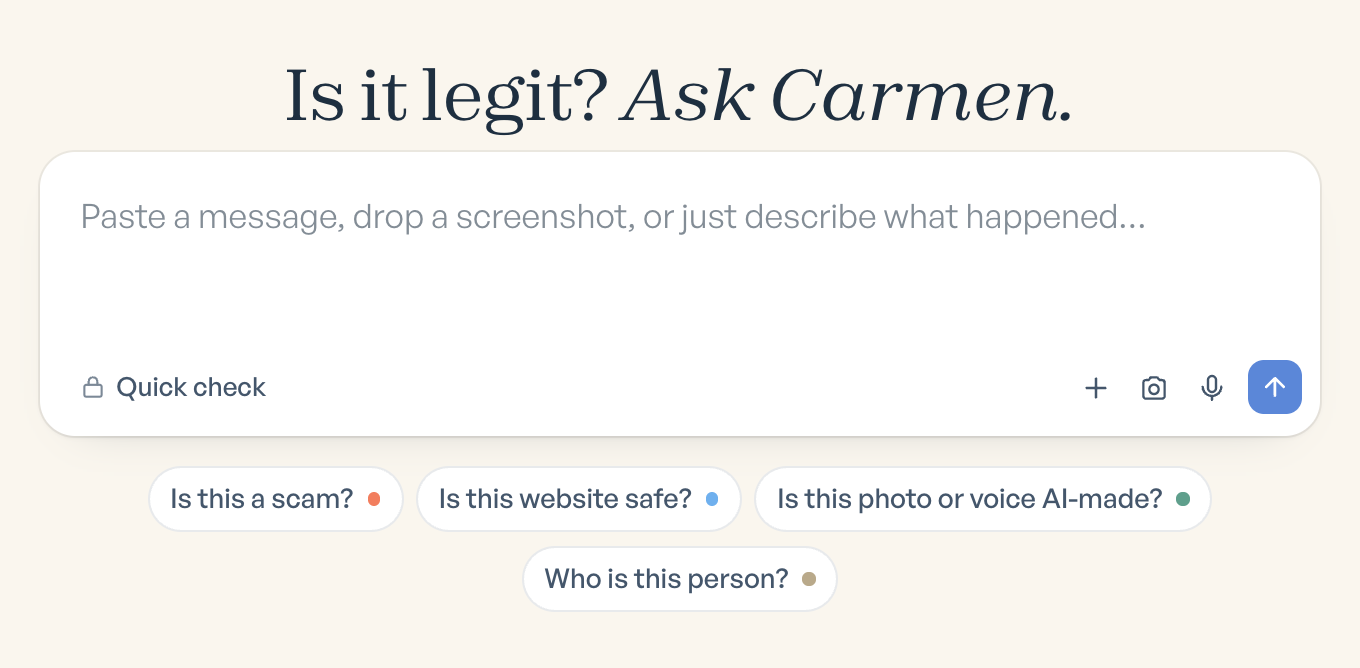
Ask Carmen
02
Connect Outlook
If your mailbox is not already connected by your company, open Settings, then Integrations, and click Connect Outlook. You can also connect from the Carmen app during setup.
Carmen Email
Settings / Integrations
Connect your inbox
 GmailConnect Gmail
Microsoft 365Connect Outlook
03
Sign in to Microsoft and click Accept
Sign in to Microsoft. If your company has approved Carmen, you will not see a permissions screen. Otherwise, Microsoft shows the permissions: read your mail, keep access. Click Accept.
Microsoft
Microsoft
Allow Backgrounder to read your mail
Read your email and keep access.
CancelAccept
04
Done
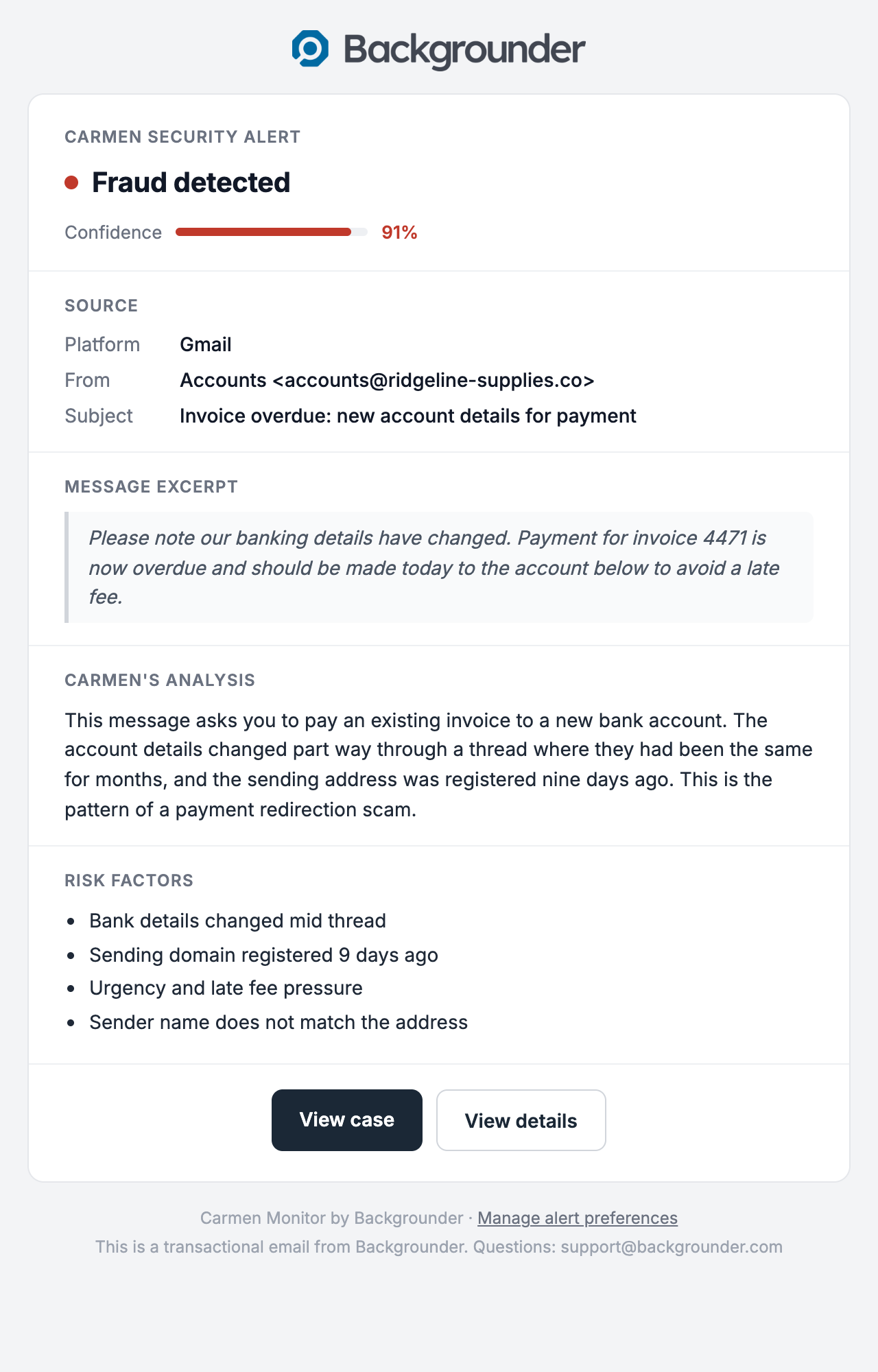
From here it works the same as Gmail. Carmen screens new mail from now on. You get an email when something is Medium or High.
Carmen Email
If it did not work
- Microsoft says approval is needed: your admin has not granted consent yet. Send them the admin guide.
- Sign in loops: sign in with your work account, not a personal Outlook.com account.