Troubleshooting.
Find the product you are setting up.
01
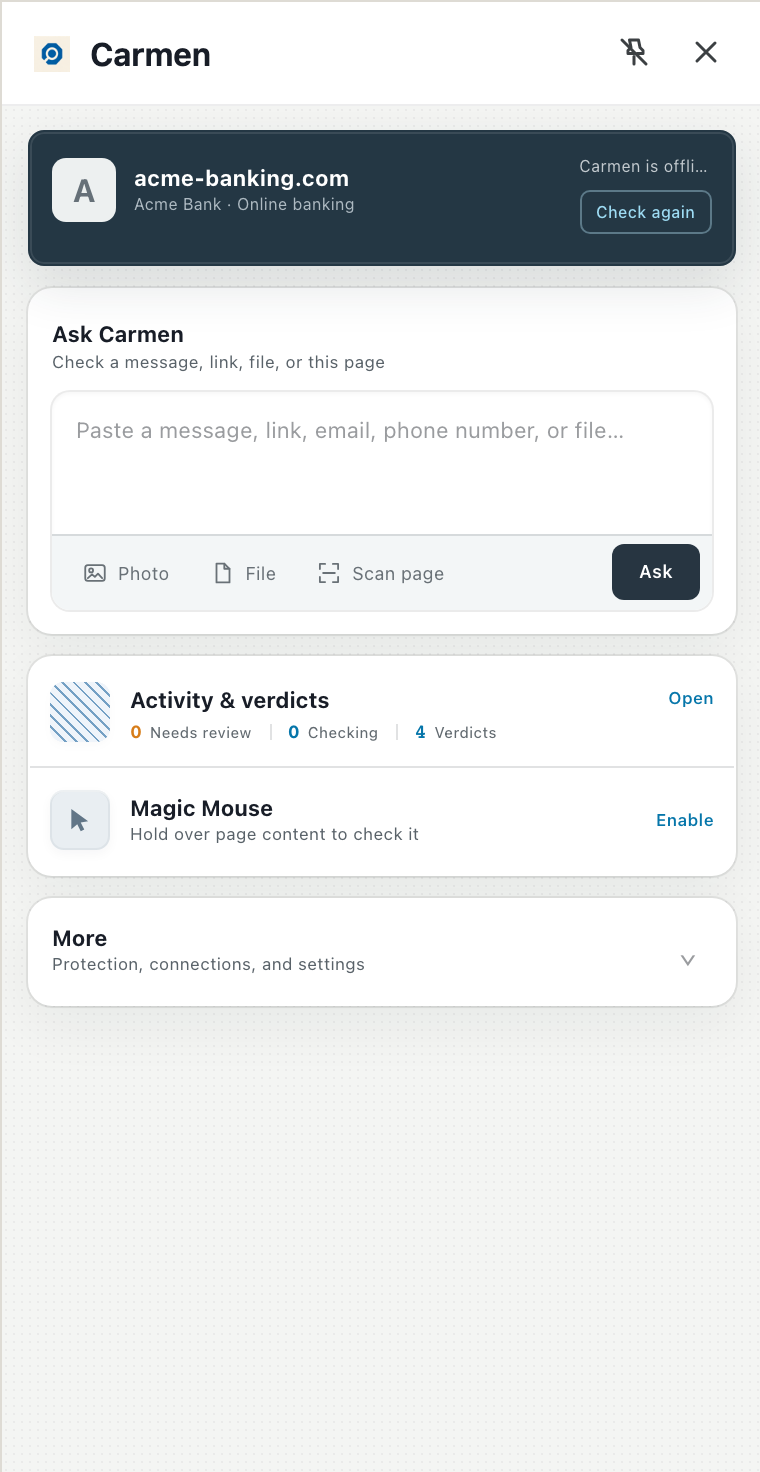
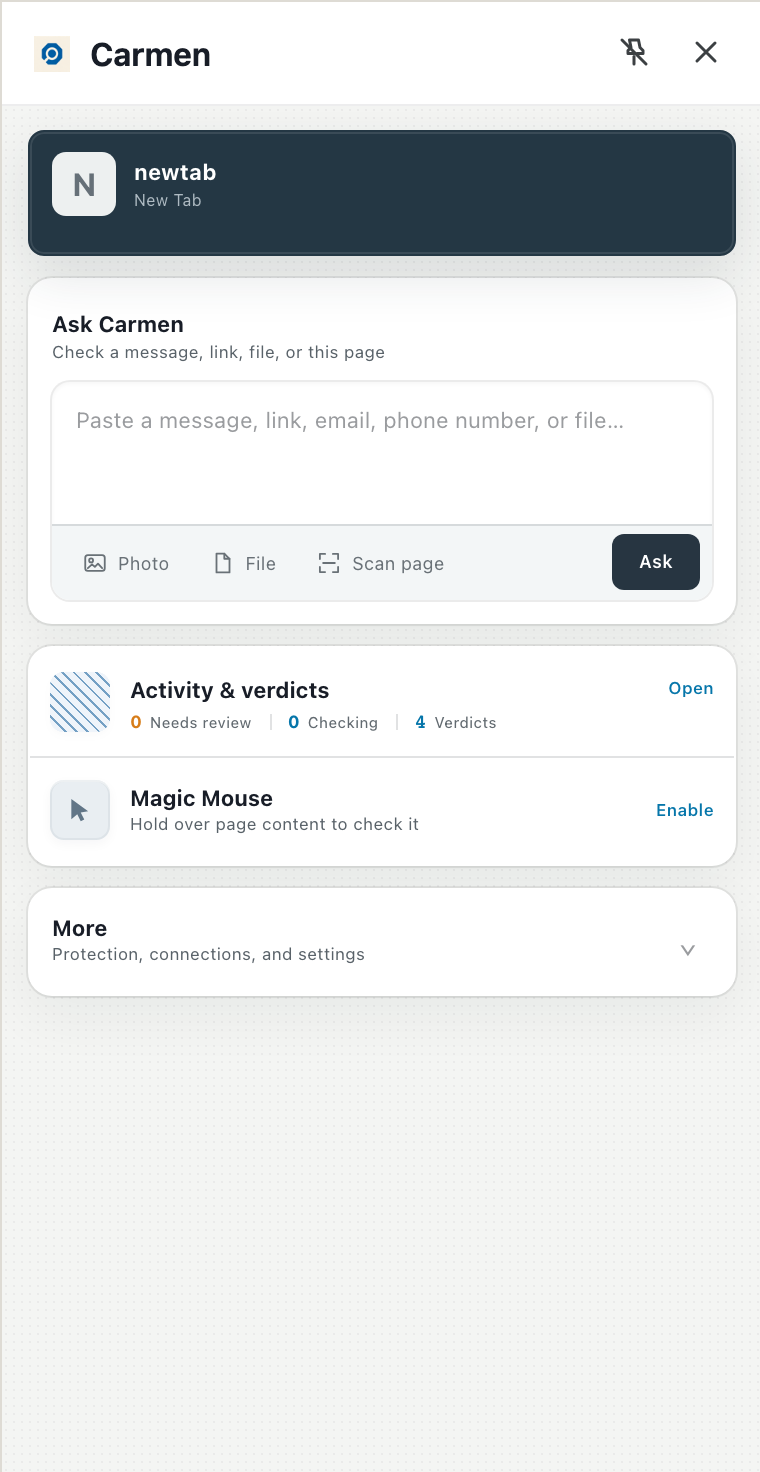
Set up the Carmen extension
- Not in the toolbar: click the puzzle icon and pin it.
- The panel will not open: restart Chrome and click the icon again.
- Top card says Connection needed or Carmen is offline: click Check again. If it stays, open More, Connections, and sign in again.
- A site is not being watched: open More, Connections, Monitored sources and check the switch. Pages already open keep the old setting until you reload them.
Carmen
02
Set up Carmen Guardian
- Texts are not being filtered: Filter Spam is still on. Turn it off in Settings, Messages.
- Still not filtered: Text Message Filtering is not set to Carmen Guardian. Set it and come back.
- A text from a friend was not checked: this is expected. Texts from contacts are never screened, and neither are iMessages (blue).
- No notification arrived: nothing was Medium or High yet. Open History to see what was checked.
Setup reference
Text Message Filtering
None
Carmen Guardian✓
03
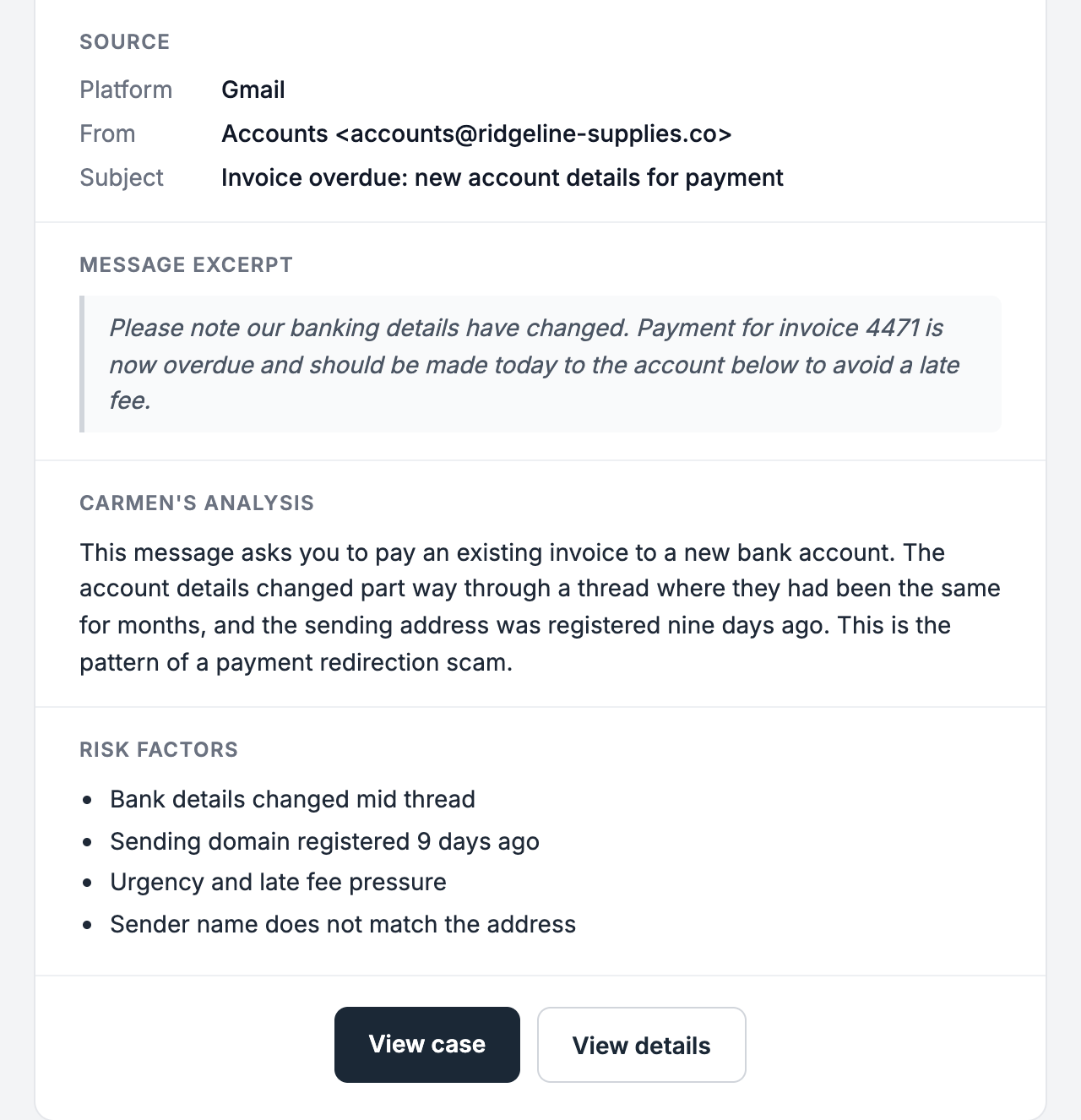
Connect your Gmail
- Google says the app is unverified or blocked: your Workspace admin has to allow it. See above.
- Connected but no alerts: nothing was Medium or High yet. Open the activity list in the app.
- Connection dropped after a week: reconnect. See Good to know.
Carmen
04
Connect your Microsoft 365 mailbox
- Microsoft says approval is needed: your admin has not granted consent yet. Send them the admin guide.
- Sign in loops: sign in with your work account, not a personal Outlook.com account.
Carmen
05
Get started with Carmen at work
- invite missing (check spam, ask your admin to resend from People)
- Carmen missing from Chrome (click the puzzle icon and pin it)
- mailbox will not connect (your admin has not approved it yet).
Carmen
06
Create your company account
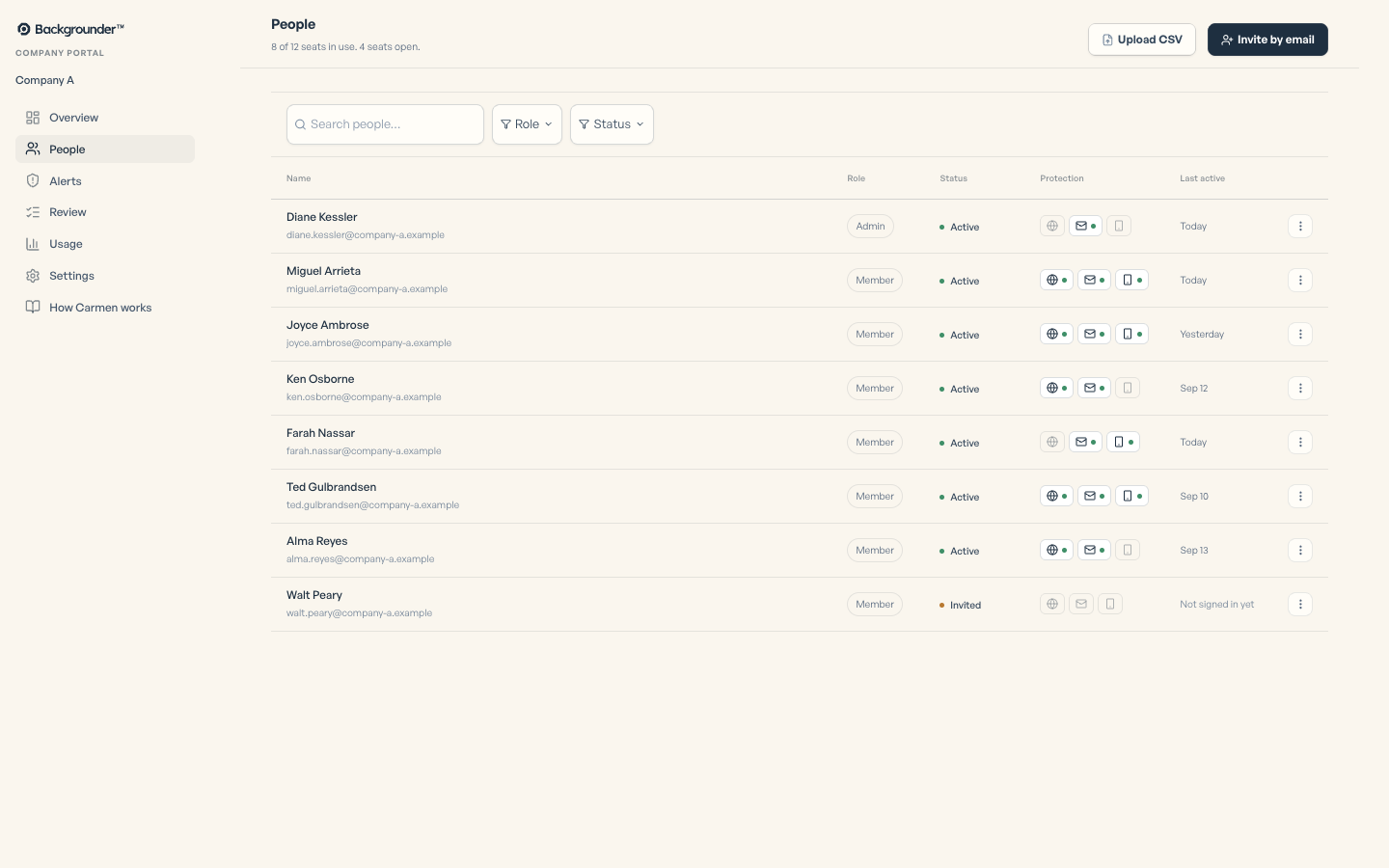
- Invite not received: check spam, resend from People.
Carmen
07
Install the extension for everyone
- Carmen not appearing? On that computer, open chrome://policy and click Reload policies. ExtensionInstallForcelist should list
ocfomobdgfdpfoplmmmocghhgkbniiia. - Not listed: check that Chrome management is on for that organisational unit and that the person is signed in to Chrome with their work account.
- Listed but Carmen is turned off: check whether a policy that blocks extension permissions applies to it.
Setup reference
Google Admin console
Apps and extensions
Carmen Monitor Force install + pin to browser toolbar
08
Approve Carmen Email for your company
- your people still see a permissions screen (consent was not granted for the whole organisation, only for you)
- Google says the app is blocked (it is not on the trusted list yet).
Setup reference
Grant admin consent
Read mail
Keep access
Sign in and read profile
Accept09
The web app
- Free checks used up: make an account or upgrade.
- Case closed: cases close after seven days, but you can still read them.
Ask Carmen