Set up the Carmen app.
About two minutes.
Install Carmen Guardian
Install Carmen Guardian from the App Store. That is the store name of the Carmen app.
On Android: install it from Google Play.

Carmen Guardian
The Carmen app
App Store · Google Play
Open it and sign in
The first screen says Meet Carmen. Tap Sign in with Backgrounder and sign in. Tap through the short intro.
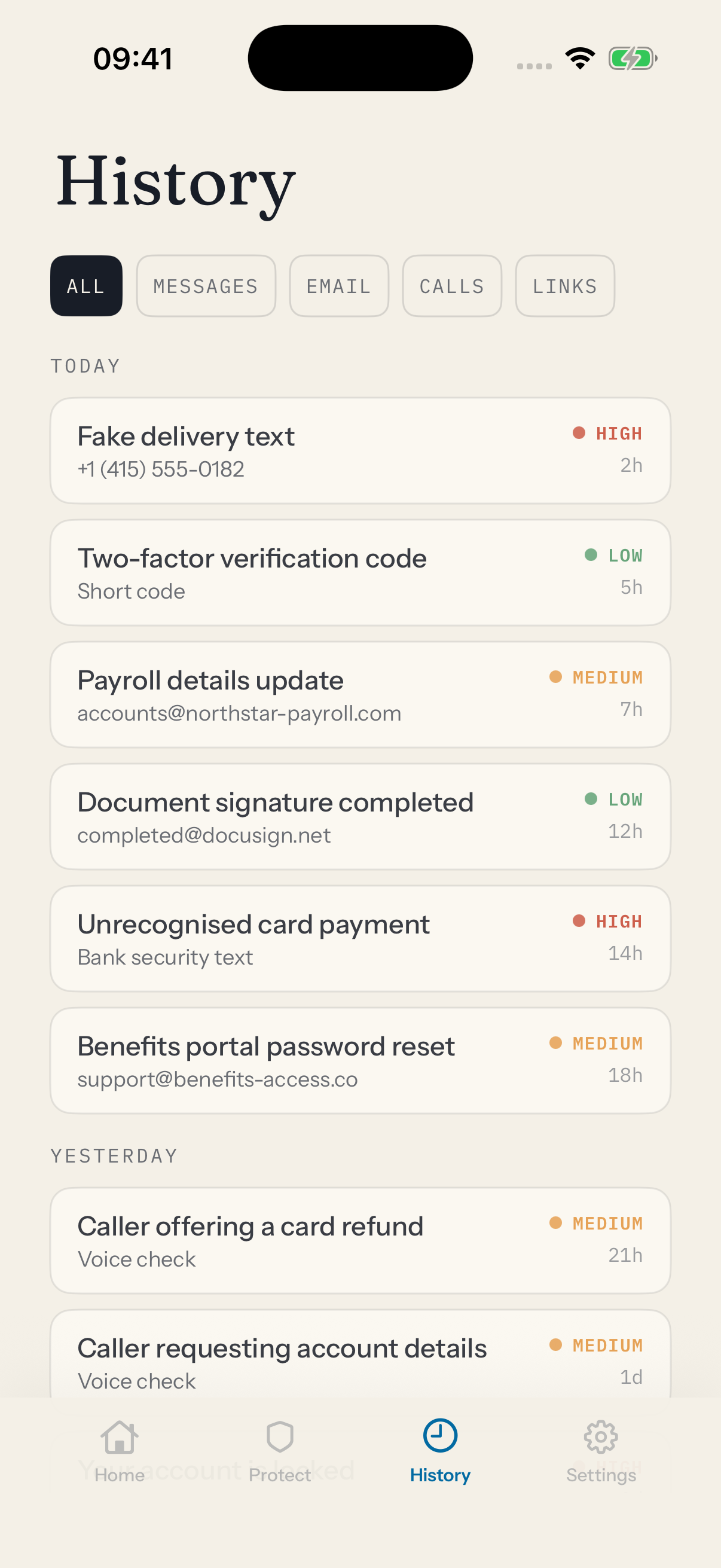
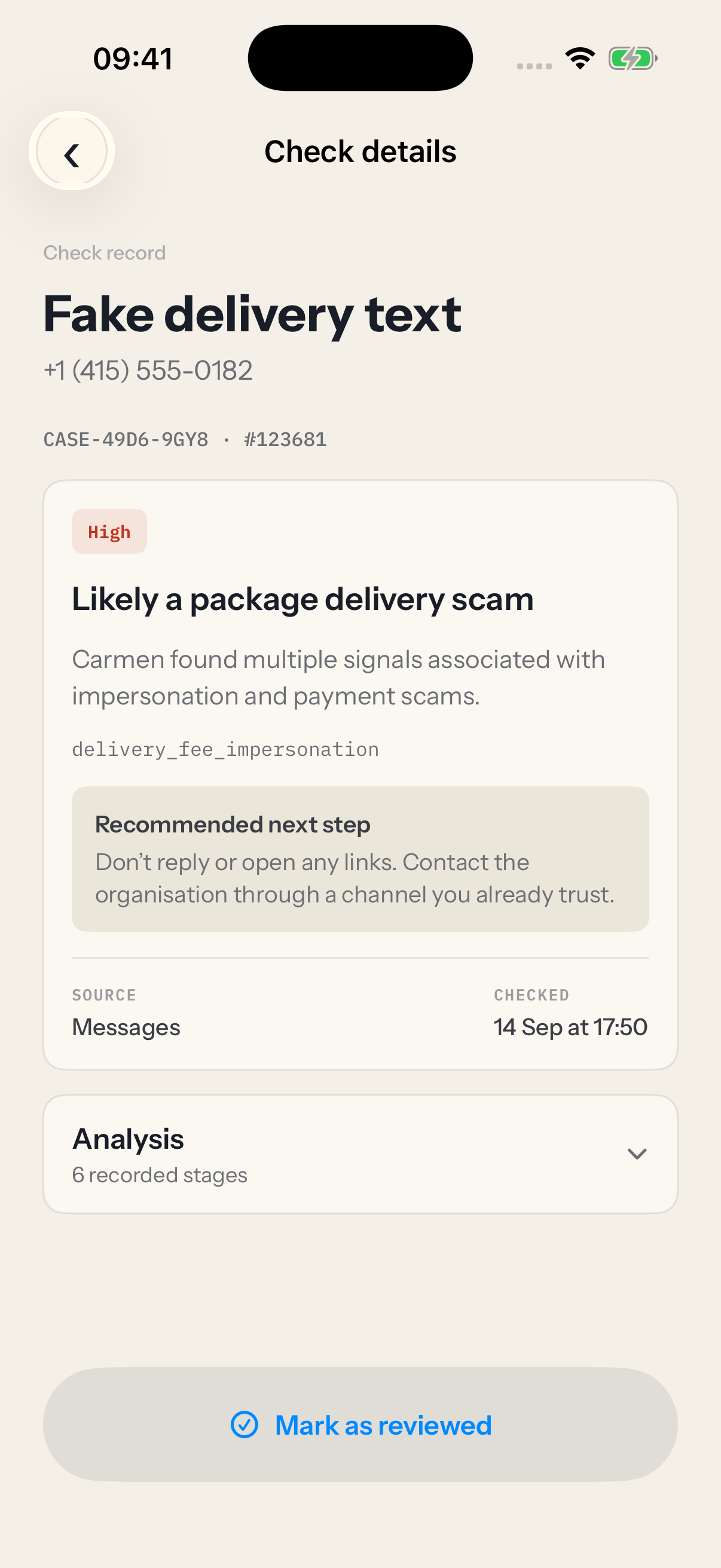
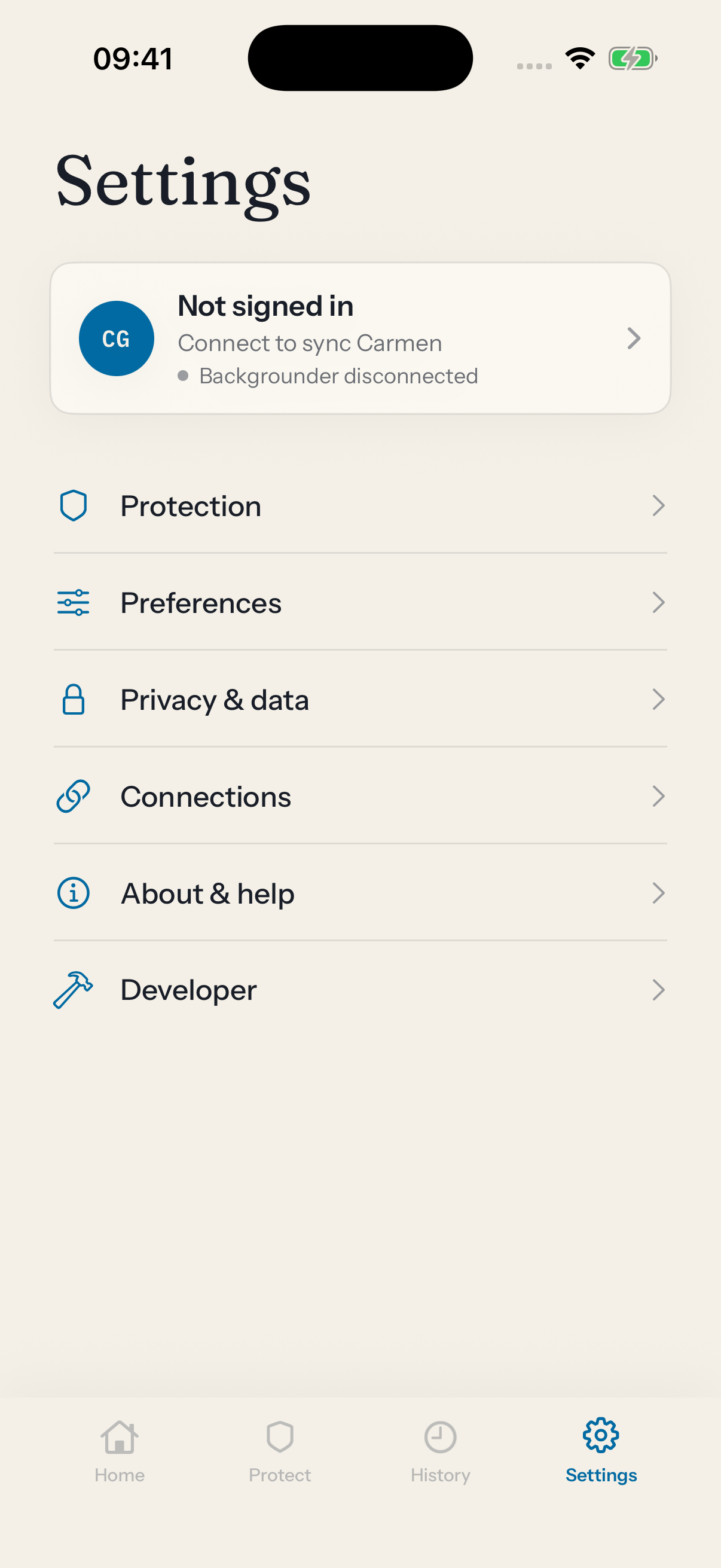
Turn on protection
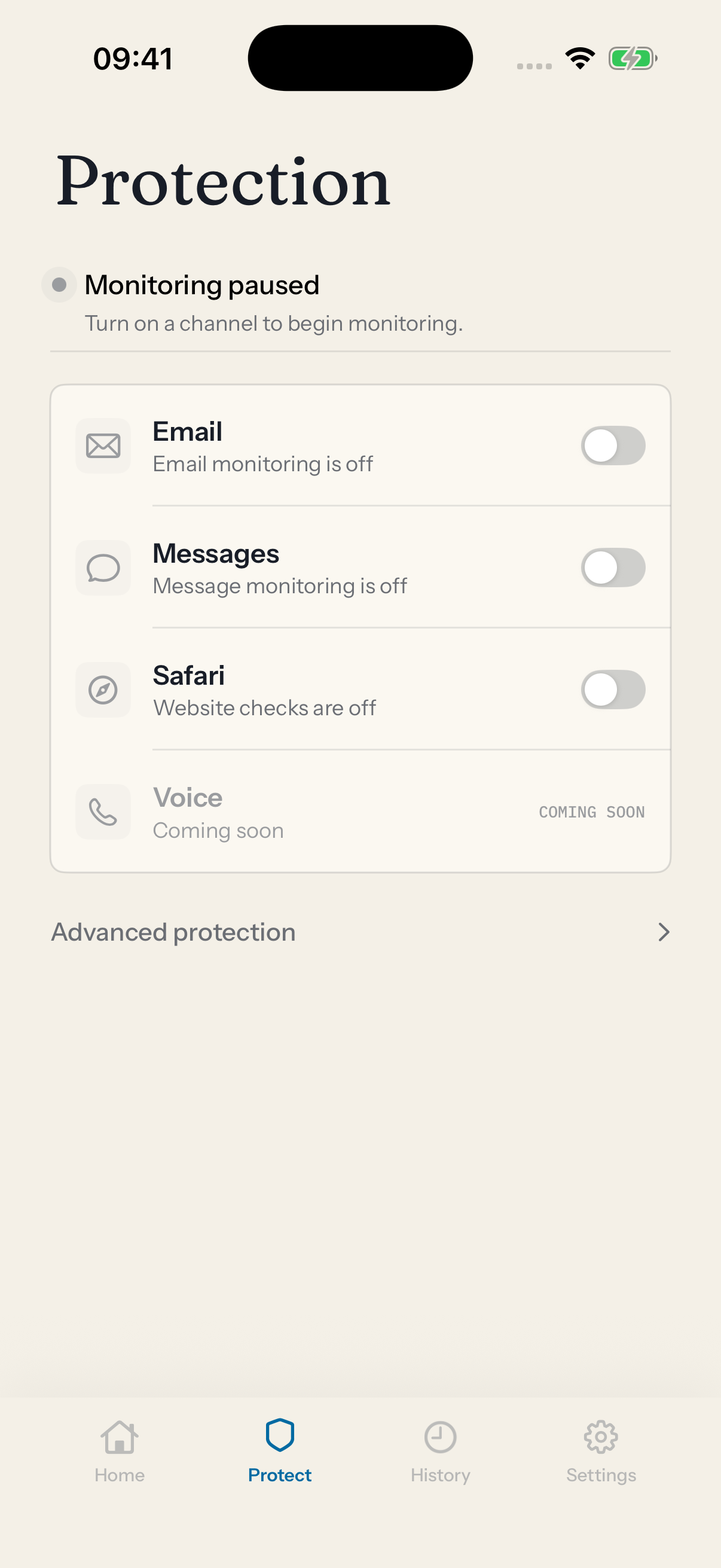
The last setup screen is Turn on protection. Tap Set up Messages.
Start with Messages. Carmen will explain the system step before opening Settings.
Choose Carmen Guardian as your text filter
Carmen shows you what to pick, then opens the iPhone setting. Under Text Message Filtering choose Carmen Guardian. Come back to the app and tap I selected Carmen Guardian.
If the setting did not open: Settings, Apps, Messages, Text Message Filtering. On older iOS: Settings, Messages, Unknown and Spam, SMS Filtering.
On Android: Settings, Apps, Default apps, Spam protection.
‹ Messages
Text Message Filter
Choose Carmen Guardian to filter messages from unknown senders.
Illustrative
Turn off Apple’s Filter Spam
On iOS 26 the same Messages settings screen has Apple's own Filter Spam switch, on by default. Turn it off. If it stays on, Apple keeps the texts and Carmen never sees them. The app cannot check this for you, so do it now.
On Android: skip this iPhone setting.
‹ Messages
Message Filtering
Filter Spam is off.
Illustrative
Allow notifications when asked
Carmen asks once, after setup.
Run your first check
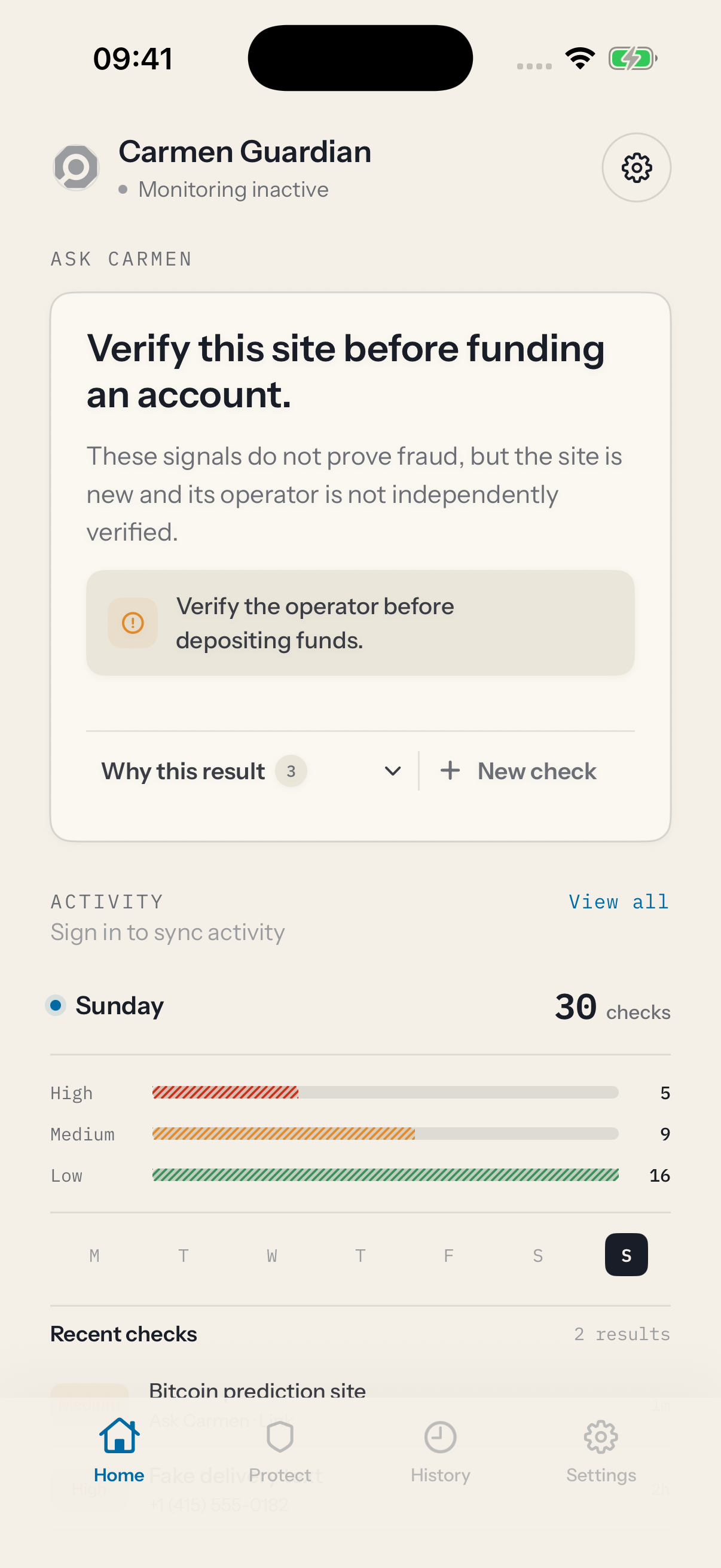
Paste a text you were not sure about into Ask Carmen and tap Ask. The next SMS from an unknown number is screened on its own.
If it did not work
- Texts are not being filtered: Filter Spam is still on. Turn it off in Settings, Messages.
- Still not filtered: Text Message Filtering is not set to Carmen Guardian. Set it and come back.
- A text from a friend was not checked: this is expected. Texts from contacts are never screened, and neither are iMessages (blue).
- No notification arrived: nothing was Medium or High yet. Open History to see what was checked.